How GitHub Codespaces Actually Works: A Deep Dive Into VMs, Containers, Port Forwarding, and Persistence
Saman Pandey
Aug 9, 2026 · 18 min read
My laptop's screen stopped working a few weeks ago. Not "flickering and about to die," just gone, mid-session, no warning. No spare monitor at hand, so I borrowed my dad's laptop to stay unblocked.
The obvious move would've been to install everything fresh on it: Node versions, global npm packages, Docker, language runtimes, whatever half-finished tooling each project needed. I didn't want to do that to someone else's machine, and I didn't want to redo all of it just to hand the laptop back a week later. So instead I opened my repos in GitHub Codespaces and kept working without installing a single dev dependency locally.
That part was unremarkable. It's supposed to feel boring. What wasn't boring was the question that followed a few days in: what am I actually connected to right now? My browser tab has a terminal, a file tree, a running dev server, and a forwarded port with a real HTTPS URL, and none of it lives on any machine I own. I spent the CGNAT/IPv6 saga in my last post fighting to expose my own server to the internet. Codespaces does the equivalent of that, per user, on demand, for millions of developers, without anyone touching a router config. I wanted to know how.
This post is that investigation. It's aimed at people who already think in terms of VMs, containers, and reverse proxies: CS students, SDEs, DevOps and cloud folks, and anyone who wants the "why" behind the "it just works."
A note on sourcing, up front: GitHub publishes a genuinely detailed security model and deep-dive doc for Codespaces, and most of what follows is drawn directly from those pages. I've linked the specific doc wherever I'm stating something as fact. GitHub does not publish internals like their scheduler, VM fleet management, or the exact implementation of their connection gateway. Where I'm reasoning about why the documented behavior probably looks the way it does, I've said so explicitly rather than presenting it as confirmed architecture. If you're building something similar and need ground truth, treat the docs as the source and this post as the guided tour.
Table of contents
- The one-sentence version
- Architecture, end to end
- What happens when you click "Create codespace"
- Why the browser sometimes won't load (but VS Code does)
- Persistence: three different lifecycles, not one
- Port forwarding: the part that actually connects to my last post
- Isolation and the token model
- Why creating a codespace doesn't always feel slow
- How this compares to the rest of the remote-dev landscape
- Try it yourself
- Closing thought
The one-sentence version
A codespace is not "VS Code in the cloud." It's a coordinated system: a control plane provisions an isolated VM, a Docker dev container defines your toolchain inside it, a persistent volume survives the container's lifecycle, a remote VS Code server does the actual editing work next to your code, and an authenticated gateway is the only path in, for both you and any port you forward.
Everything below is one of those five pieces.
Architecture, end to end
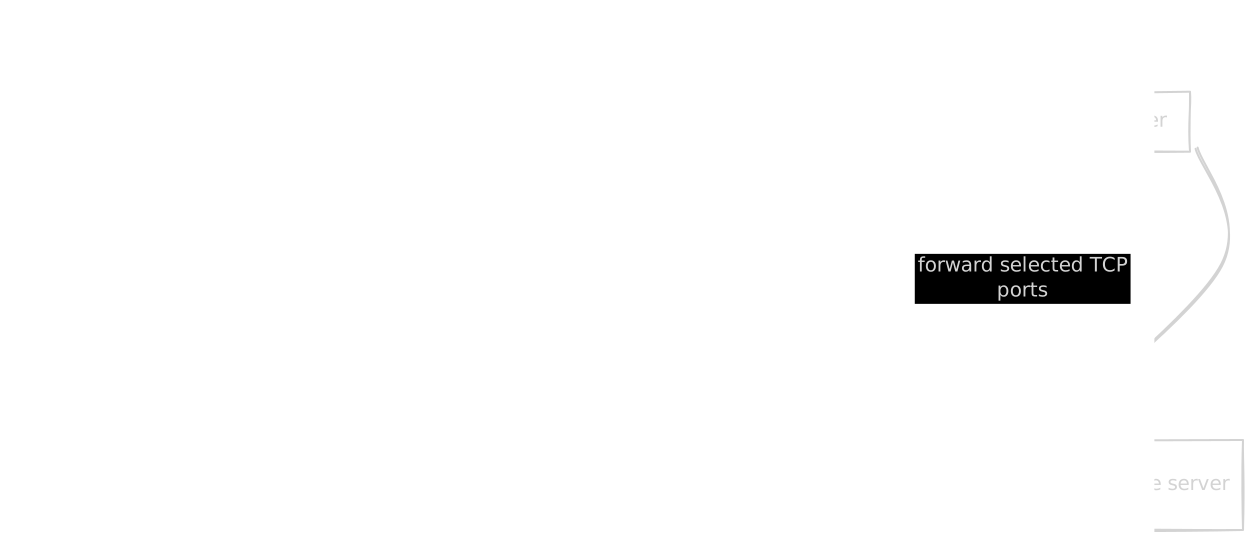
Two layers matter most here, and it's worth being precise about why both exist instead of just one:
- The VM is the isolation boundary. It owns the kernel, the network namespace, and the actual compute. GitHub's docs state plainly that each codespace runs on its own, newly-built VM, and that two codespaces are never co-located on the same VM. Restarting a codespace redeploys it to a fresh VM with current security patches. That's a much stronger isolation guarantee than "separate containers on shared infra."
- The container is the reproducible environment layer: the actual toolchain, language runtimes, CLIs, VS Code extensions, whatever your
devcontainer.jsonasks for. This is the part that's supposed to look identical whether you're running it locally via the Dev Container spec or remotely in Codespaces.
You get VM-grade isolation and container-grade reproducibility, at the cost of running a container inside a VM instead of just one or the other. That trade-off is deliberate, not incidental. A shared-VM multi-tenant container model would be cheaper to run, but it means a container escape becomes a cross-user problem instead of a contained one.
What happens when you click "Create codespace"

Per GitHub's own deep-dive doc, this is genuinely the documented order: the VM and storage get provisioned first, the repo is shallow-cloned into /workspaces on that VM, and only then is the dev container built from your devcontainer.json (or a sensible default image, if you don't have one) and mounted against that same /workspaces path. If there's no devcontainer.json in the repo, Codespaces falls back to a default image with a broad set of common languages and tools pre-installed.
A few things worth calling out for anyone who's used docker run locally but not thought about this sequencing:
- The clone happens before the container exists. The container is built around your code, not the other way around.
postCreateCommandandonCreateCommandindevcontainer.jsonare exactly what they sound like: arbitrary shell commands the platform will run for you. GitHub is explicit in the security docs that this means opening an untrusted repo in Codespaces means running itsdevcontainer.json, the same trust model as running someone'sMakefileor CI config blindly.- The VS Code piece is not a custom GitHub invention. It's the same client-server remote development model VS Code uses for SSH and WSL remoting: a thin client renders UI, a server process near the code does the actual language-server/extension/file-watching work. Codespaces is really "that model, with GitHub doing the provisioning and networking for you."
Why the browser sometimes won't load (but VS Code does)
A friend of mine, Shikhar, hit this while I was mid-draft on this post. He created a codespace, opened it in the browser, and it sat on "Setting up your codespace" indefinitely, no progress, no error. He switched to "Open in VS Code" (the desktop app) and it connected cleanly, first try. That exchange is basically what pushed me to add this section, so credit where it's due.
This is a real, commonly reported issue. A search through GitHub's own community discussions turns up dozens of threads with the exact same symptom: browser client hangs on the setup screen, desktop VS Code (or the VS Code Codespaces extension) connects fine on the same codespace. I want to be precise about what I can and can't confirm here.
What GitHub actually documents: their troubleshooting guide for Codespaces clients points to a handful of concrete, named causes for the browser client specifically failing to load or behaving oddly. Non-Chromium browsers are one (they explicitly recommend Chrome or Edge over Firefox/Safari), known bugs in whichever VS Code web build you're on are another, and issues specific to the Insiders channel of the web client versus Stable are a third. Their documented fix for a web client that won't load at all is literally appending ?vscodeChannel=stable to the codespace URL to force the stable build.
What I'm reasoning about, not confirming: the browser-based VS Code web client isn't just rendering a static page. It opens a persistent, long-lived connection to the remote VS Code server running in your container (this is the same client-server model referenced above) and keeps that connection alive to stream file changes, terminal output, language-server responses, and UI state back and forth in real time. If that connection gets interrupted, throttled, or blocked partway through, whether by a flaky network, a corporate proxy, an ad blocker or privacy extension, or the browser tab losing focus at the wrong moment during setup, the web client has nowhere good to fail to. It just sits on "Setting up your codespace," because from the client's perspective the handshake never completed and there's no fallback path. The desktop app and the VS Code Codespaces extension establish that same kind of connection but outside the constraints of a browser tab's networking stack: no extensions competing for the same page, no tab-suspension behavior, generally more forgiving of a slow or interrupted handshake. That's a plausible reason it succeeds when the browser doesn't. I'm calling this out as my own inference from how the client-server model works, not something GitHub's docs state explicitly as "the cause." I couldn't find an official GitHub source that names streaming or connection interruption as the root cause in those words, so treat this paragraph as an educated read of the symptom rather than a confirmed root cause.
What actually works, in practice: switching to VS Code desktop (or the web client's Stable channel, or a Chromium browser) resolves it often enough that it's the first thing worth trying before you file a bug or start debugging your network. If you want to stay in the browser, here's the order I'd try things in, based on GitHub's own troubleshooting doc: switch to a Chromium-based browser first, then force the Stable channel via ?vscodeChannel=stable, then clear cache or try a private window, then check microsoft/vscode issues for your specific browser. If none of that works, "Open in VS Code" is a completely legitimate workaround, not a downgrade.
Persistence: three different lifecycles, not one
This is the part I actually got wrong in my head before reading the docs closely, and I think most people do. "Persistent codespace" isn't one guarantee, it's three, stacked, with different survival rules.
| Location / state | Stop then Start | Rebuild container | Delete codespace |
|---|---|---|---|
/workspaces (your repo clone) |
Preserved | Preserved | Lost |
Everything else outside /workspaces (~/.bashrc, installed packages, etc.) |
Preserved | Reset to image defaults | Lost |
/tmp |
Cleared | Cleared | Lost |
| Committed and pushed Git history | Preserved (it's on GitHub) | Preserved | Preserved |
| Uncommitted changes | Preserved while codespace exists | Preserved (it's in /workspaces) |
Lost |
This is confirmed directly in GitHub's docs: /workspaces is described as a persistent directory mounted into the container, and anything outside it, with the exception of /tmp, which has its own shorter-lived rules, is explicitly tied to the container's lifecycle, not the codespace's. A rebuild deliberately wipes everything outside /workspaces so that the freshly rebuilt container matches what a brand-new codespace would look like from the same config. That's a feature, not a leak. It's how you validate that your devcontainer.json is actually reproducible before you push it for teammates to use.
The practical mental model I've landed on:
Stopping a codespace pauses billing and compute, basically a suspended VM. Rebuilding recreates the container from your dev container config, on the same VM, keeping
/workspaces. Deleting destroys the whole thing; only what you pushed to Git survives.
One more detail that surprised me: stopping a codespace doesn't mean it lives forever. GitHub auto-deletes stopped, inactive codespaces after a retention period, 30 days by default, configurable down to zero, and the countdown resets every time you reopen it. So a stopped codespace is not a backup. If it's not pushed, it's not safe.
What should actually live where
- Source code and anything you'd want to survive a rebuild: commit it, don't just leave it in an untracked file in
/workspaces. - Reproducible setup, like installed tools, env vars, and VS Code extensions: put it in
devcontainer.json, a Dockerfile, or Dev Container Features, not manualapt installin a terminal that a rebuild will silently erase. - Personal shell config across every codespace you create, not just one: link a dotfiles repository, which itself gets cloned into the persistent
/workspacesarea. - Actual secrets: use Codespaces development environment secrets, injected as env vars. Never commit them, and never hand-type them into a
.envyou assume survives a rebuild.
Port forwarding: the part that actually connects to my last post
This is where the JioFiber saga and Codespaces rhyme. In that post, exposing a service meant fighting CGNAT, IPv6 firewall allowlists, and DNS proxy toggles just to get a single port reachable from outside my own network. Codespaces developers never see any of that, but only because GitHub is doing an equivalent job for you, one layer removed.
Your app never gets a public IP. It binds to a port inside the container, same as it would on your laptop. What makes it reachable is a gateway service in front of your VM, translating a stable HTTPS URL into a tunnel back to that port. As GitHub's docs put it, the moment your process prints something like http://localhost:3000, Codespaces detects it and forwards the port automatically, or you can declare it up front with forwardPorts in devcontainer.json. Either way you get a URL shaped like:
https://<codespace-name>-<port>.app.github.dev

The important distinction, and the one I think is genuinely underappreciated, is that this is not the same thing as opening a firewall port on the VM. GitHub's security docs are explicit that each codespace's VM sits behind firewalls that block all incoming internet connections by default. Forwarded ports are an application-level exception carved out and mediated by the gateway, not a hole punched in the VM's network. Compare that to my JioFiber DMZ setup, where I was quite literally telling the router "route inbound traffic on this port to this IPv6 address," a much blunter instrument.
Visibility is a real access-control decision, not a toggle
| Visibility | Who can reach it | Auth required |
|---|---|---|
| Private (default) | Only you | Yes, GitHub-authenticated cookie |
| Private to organization | Org members | Yes |
| Public | Anyone with the URL | No |
Two details worth internalizing before you ever click "make public" on a debug server:
- Private forwarded ports are gated by an authentication cookie with a 3-hour expiry. After that you reauthenticate. This is documented directly in GitHub's security reference.
- Flipping a port to public removes GitHub auth entirely for that port. If your dev server has an unauthenticated debug route, an admin panel with default creds, or verbose error pages, public forwarding hands all of that to the internet at large. GitHub's own guidance is blunt about this: only open repos you trust, because
devcontainer.jsoncan already run arbitrary commands, and a public port compounds that risk outward. Organizations can enforce policy here too. Restricting public forwarding org-wide is a documented, supported control, not a workaround.
If you want to see this for yourself: run python3 -m http.server 3000 --bind 0.0.0.0 in a codespace, forward port 3000, and compare hitting it via the private URL (authenticated) versus flipping it public and opening it in an incognito window. The difference is the entire point of the feature.
Isolation and the token model
I mentioned VM isolation above; the same "each codespace gets its own" pattern extends to networking. GitHub states each codespace has its own isolated virtual network, with firewalls preventing codespaces from reaching each other over internal networking, even though outbound internet access is allowed by default (useful for npm install and package registries, and also, worth noting, a real path for data exfiltration if you're running something untrusted).
There are four separate authentication questions happening whenever you use a codespace, and it's easy to conflate them:
- Can you connect to the codespace at all? Browser/VS Code auth against GitHub, over an encrypted connection.
- Can the codespace talk to GitHub on your behalf? A fresh GitHub token is minted every time a codespace is created or restarted, scoped according to your actual repo permissions, with an automatic expiry so a stale open connection doesn't linger indefinitely.
- Can someone else reach your running app? The port-visibility model above.
- Can your code read sensitive values? Explicit, scoped Codespaces secrets injected as env vars, not implicit access to everything.
None of this makes arbitrary code inside a codespace "safe" to run. It reduces blast radius, it doesn't eliminate it. A malicious postCreateCommand, a compromised npm package with a postinstall script, or a rogue VS Code extension are all still real risks inside the isolation boundary GitHub gives you. Isolation is about containing the damage to your own codespace and your own token scope, not about there being no damage possible.
Why creating a codespace doesn't always feel slow
Provisioning a VM, cloning a repo, pulling or building a container image, installing OS packages, language runtimes, project dependencies, and editor extensions, then running lifecycle commands: done from zero, that's a lot of sequential work. GitHub's answer is prebuilds.
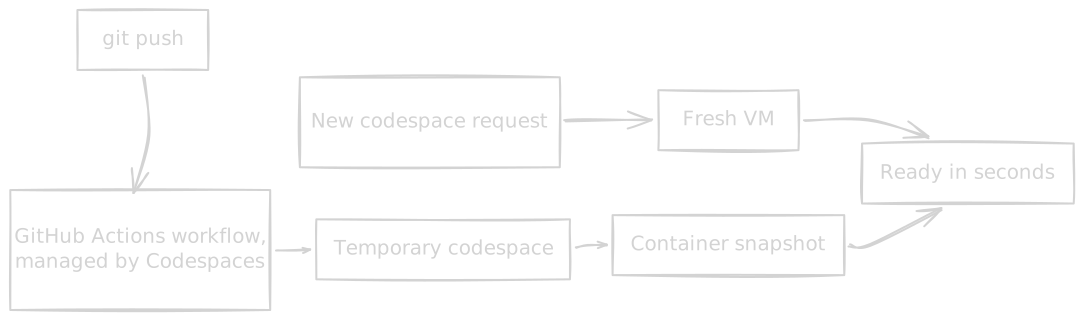
Per the prebuilds documentation, this is a GitHub Actions workflow, managed by the Codespaces service itself, that runs on pushes, or a schedule, or config changes. It spins up a temporary codespace, runs setup through onCreateCommand and updateContentCommand (deliberately not postCreateCommand, since that one's meant for per-session setup), then snapshots the resulting container and stores it. When you actually request a codespace, GitHub attaches that snapshot to a fresh VM instead of building from scratch. GitHub's own guidance is that this is worth setting up once creation takes more than about two minutes; for smaller repos, plain image caching may already be fast enough that prebuilds aren't worth the added Actions minutes and storage cost.
I don't have visibility into GitHub's actual scheduler, VM fleet, or image-caching internals beyond this. The docs describe the externally observable behavior, not the backend implementation, and I'm not going to speculate on the scheduler or orchestration layer as if I know it.
How this compares to the rest of the remote-dev landscape
| Model | Environment unit | Persistence | Core abstraction |
|---|---|---|---|
| GitHub Codespaces | Dedicated VM + dev container | /workspaces persists; rest tied to container |
Repo-native remote dev |
| Gitpod / Ona workspaces | Ephemeral workspace container | Workspace content backed up and restored on resume | Cloud dev workspace |
| Coder | Admin-defined remote workspace | Depends on configured volumes | Self-hosted remote dev platform |
| Local dev container | Container on your machine | Local filesystem | Reproducible local dev |
| Plain SSH dev server | Remote host/VM | Remote filesystem | Editor over SSH |
I'll flag this table as the part of this post I'm least certain about in absolute terms. The Codespaces column is doc-verified above; the other rows are based on my general understanding of how those tools describe themselves publicly, not a fresh read of each one's current docs. If you're citing this comparison somewhere, verify the Gitpod/Coder specifics directly against their current documentation rather than trusting my summary.
Try it yourself
If you want to actually see these boundaries instead of taking my word (or GitHub's docs) for it, these are the experiments I ran while writing this:
- Persistence boundaries. Write a file into
/workspaces, one into~, one into/tmp. Stop/start the codespace, then rebuild the container, and check which files survived each step. - Port forwarding modes. Start a server bound to
0.0.0.0, forward the port, and compare127.0.0.1:<port>vs. the*.app.github.devURL, and private vs. public visibility, in an incognito window. - Inspect the environment directly:
cat /etc/os-release,id,mount,ip addr,df -h. This makes the "container on a VM" model concrete instead of abstract. - Compare restart vs. rebuild vs. delete using
ps aux/docker ps/mountsnapshots before and after each action.
Closing thought
The theme that keeps showing up across both this post and the CGNAT one is the same: the interesting engineering is almost always about who's allowed to reach what, not about making something "just work." JioFiber's IPv6 firewall wanted a specific destination address before it would let traffic in. Codespaces wants a specific authenticated gateway before it'll let traffic in. Same underlying question, radically different amount of infrastructure hidden behind the answer.
My laptop screen still isn't fixed. But I've realized I don't need to rush it. As long as I have a browser and a repo, I don't actually need my own machine set up at all.
Further reading (primary sources used above)
- Deep dive into GitHub Codespaces: provisioning order,
/workspaces, container creation - Troubleshooting GitHub Codespaces clients: browser client issues, Stable vs. Insiders channel
- Security in GitHub Codespaces: VM/network isolation, tokens, port-cookie expiry
- Forwarding ports in your codespace: visibility modes, HTTPS forwarding
- Configuring automatic deletion of your codespaces: retention period behavior
- About GitHub Codespaces prebuilds: snapshot/Actions pipeline
- VS Code Remote Development: the client/server model Codespaces builds on
- Development Containers Specification: the open spec behind
devcontainer.json